---
title: GameStrat Laptop Indicators
description: Learn to read GameStrat's laptop, iPad, and hardware status lights to quickly diagnose connection issues across Premium, College, and Pro packages.
---
[Skip to content](https://support.gamestrat.com/gamestrat-status-indicators-0#main-content)
English
Show submenu for translations
[Contact Us](https://support.gamestrat.com/kb-tickets/new?hsLang=en)
- [Support Home](https://support.gamestrat.com/)
- [Login](https://www.gamestrat.com/login)
- [Return to gamestrat.com](https://www.gamestrat.com/)
Open main navigation
Close main navigation
- [Support Home](https://support.gamestrat.com/)
- [Login](https://www.gamestrat.com/login)
- [Return to gamestrat.com](https://www.gamestrat.com/)
- English
Show submenu for translations
- [Contact Us](https://support.gamestrat.com/kb-tickets/new)
How can we help you?
- There are no suggestions because the search field is empty.
1. [Support Home](https://support.gamestrat.com/?hsLang=en)
2. [Troubleshooting](https://support.gamestrat.com/troubleshooting?hsLang=en)
3. [Software Indicators](https://support.gamestrat.com/troubleshooting?hsLang=en#software-indicators)
July 10, 2026
# GameStrat Laptop Indicators
## How to Use GameStrat Laptop Indicators to Diagnose Issues
---
### Laptop Indicators
You can find the laptop indicators on the top left of the GameStrat App on the laptop. It is imperative that these are correct, or the rest of the system will not work.
**Network:** Ethernet **IP:** Valid
- The laptop is connected via Ethernet and has obtained the correct IP address. The laptop's connection to the router is not the issue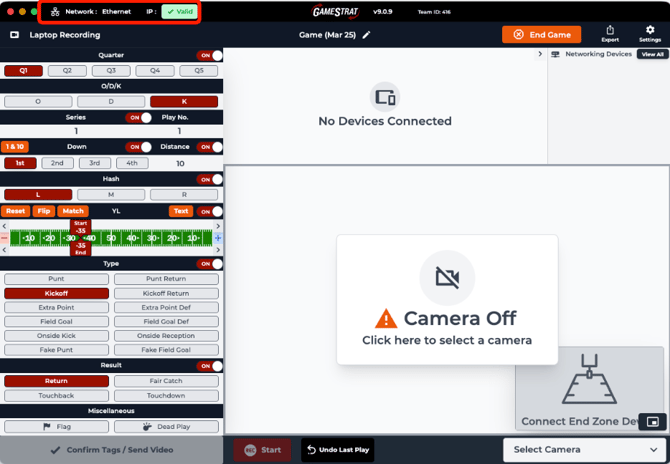.
**Network:** GameStrat WiFi **IP:** Valid
- The laptop is connected via the GameStrat WiFi and has obtained the correct IP address. Turn off WiFi and connect to the router via Ethernet.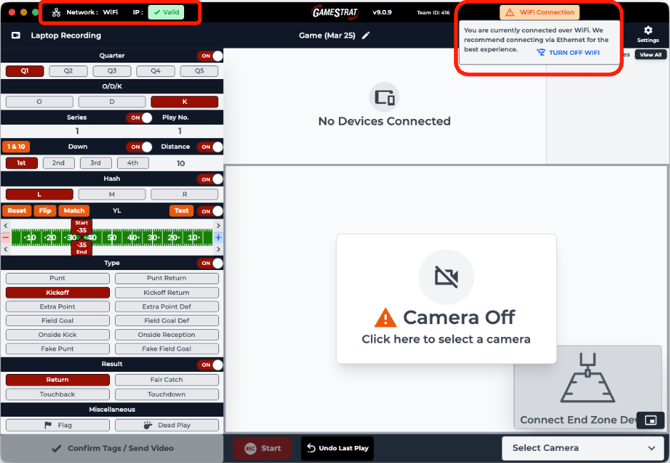
**Network:** Ethernet **IP:** Invalid
- The laptop is connected to the router, but is not obtaining the correct IP address.
- Confirm that the Ethernet connection to the laptop is coming out of the “laptop” port on the router.
- Try a different laptop port or a different Ethernet adapter.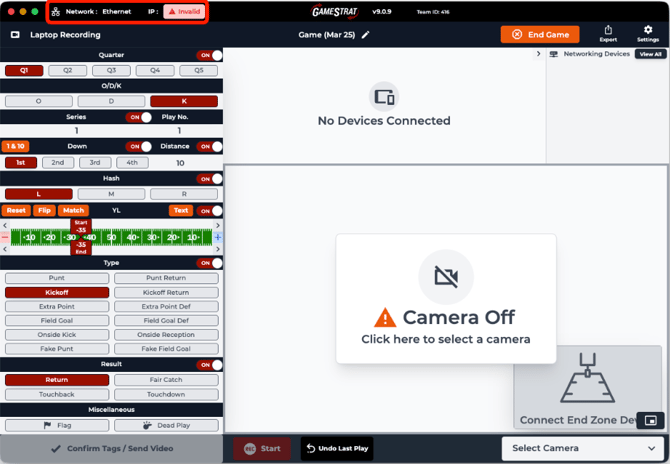
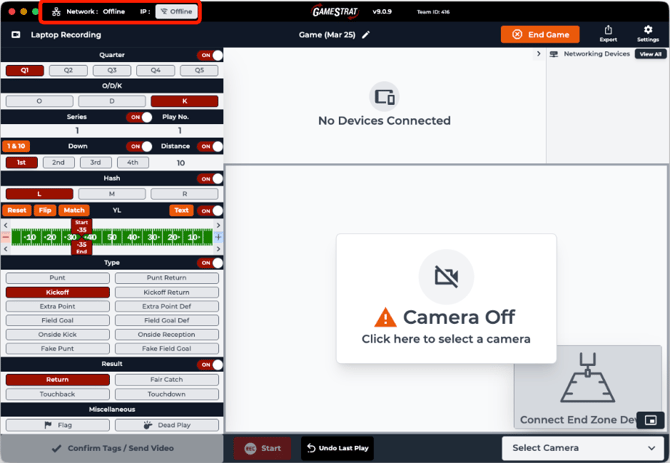
**Network:** Offline **IP:** Offline
- The laptop is not detecting Ethernet. Confirm that the connection between the laptop and the router is correct.
- Try a different laptop port or Ethernet adapter.
- Confirm that the GameStrat Router is receiving power via the "PWR" light on the router.
- Check that the GameStrat Router Power Box has a solid green light. Third-party power boxes often do not work and may damage the router.
- Disconnect the GameStrat Router from power for 30 seconds and reconnect it.
- Try to connect the laptop to the GameStrat WiFi to confirm if the Ethernet connection is the issue.
---
If you have any questions regarding your laptop software indicators, please call us at **1-800-783-1968 x1** so we can assist you directly.
- [Setup & Pre-Season](https://support.gamestrat.com/setup-pre-season?hsLang=en#main-content)
- [Package Setup](https://support.gamestrat.com/setup-pre-season?hsLang=en#package-setup)
- [Antenna & Signal](https://support.gamestrat.com/setup-pre-season?hsLang=en#antenna-signal)
- [Pre-Season Checklist](https://support.gamestrat.com/setup-pre-season?hsLang=en#pre-season-checklist)
- [Troubleshooting](https://support.gamestrat.com/troubleshooting?hsLang=en#main-content)
- [iPads & Connectivity](https://support.gamestrat.com/troubleshooting?hsLang=en#ipads-connectivity)
- [Networking Equipment](https://support.gamestrat.com/troubleshooting?hsLang=en#networking-equipment)
- [Camera & Video Equipment](https://support.gamestrat.com/troubleshooting?hsLang=en#camera-video-equipment)
- [Software Indicators](https://support.gamestrat.com/troubleshooting?hsLang=en#software-indicators)
- [Supported & Recommended Hardware](https://support.gamestrat.com/supported-recommended-hardware?hsLang=en#main-content)
- [Supported iPads](https://support.gamestrat.com/supported-recommended-hardware?hsLang=en#supported-ipads)
- [Supported Laptops/Computers](https://support.gamestrat.com/supported-recommended-hardware?hsLang=en#supported-laptops-computers)
- [Tutorials](https://support.gamestrat.com/tutorials?hsLang=en#main-content)
- [iPad Software Tutorials](https://support.gamestrat.com/tutorials?hsLang=en#ipad-software-tutorials)
- [Computer Software Tutorials](https://support.gamestrat.com/tutorials?hsLang=en#computer-software-tutorials)
- [Account & Team Management](https://support.gamestrat.com/account-team-management?hsLang=en)
- [FAQs](https://support.gamestrat.com/faqs?hsLang=en)
- [Game Day Tips](https://support.gamestrat.com/game-day-tips?hsLang=en)
[](https://www.gamestrat.com/)
[mailto:email@email.com](mailto:email@email.com)
Copyright © 2026, GameStrat