Skip to content
English
  • There are no suggestions because the search field is empty.

GameStrat Status Indicators

Laptop, iPad and hardware light indicators are intentionally designed to give you more information about the status of your system. Below, we outline how you can use them to ensure your system is properly connected or troubleshoot quickly in-game.


Laptop Indicators

You can find the laptop indicators on the top left of the GameStrat App on the laptop. It is imperative that these are correct, or the rest of the system will not work.

Network: Ethernet IP: Valid

  • The laptop is connected via Ethernet and has obtained the correct IP address. The laptop's connection to the router is not the issue.

Network: GameStrat WiFi IP: Valid

  • The laptop is connected via the GameStrat WiFi and has obtained the correct IP address. Turn off WiFi and connect to the router via Ethernet.

Network: Ethernet IP: Invalid

  • The laptop is connected to the router, but is not obtaining the correct IP address.
  • Confirm that the Ethernet connection into the laptop is coming out of the “laptop” port on the router.
  • Try a different laptop port or a different Ethernet adapter.

Network: Offline IP: Offline

  • The laptop is not detecting Ethernet. Confirm that the connection between the laptop and the router is correct.
  • Try a different laptop port or Ethernet adapter.
  • Confirm that the GameStrat Router is receiving power via the "PWR" light on the router.
  • Check that the GameStrat Router Power Box has a solid green light. Third-party power boxes often do not work and may damage the router.
  • Disconnect the GameStrat Router from power for 30 seconds and reconnect it.
  • Try to connect the laptop to the GameStrat WiFi to confirm if the Ethernet connection is the issue.

iPad Indicators

The images below highlight the critical iPad indicators you'll always want to ensure are correct. 

1. The iPad is properly connected to GameStrat WiFi and to the operating laptop.

Screenshot 2026-05-26 at 9.47.55 AM

2. The iPad is not connected to a network (or the wrong network) and is not connected to the operating laptop.

Screenshot 2026-05-26 at 9.50.22 AM

3. The iPad is connected to the GameStrat network, but is not connected to the operating laptop.

Screenshot 2026-05-26 at 9.53.00 AM


Hardware Status Light Indicators

Each piece of GameStrat hardware has at least 1 indicator light to inform you if it's working properly, including the power boxes. Depending on the GameStrat Package your team is using, certain lights may be different. Refer to your package below:

Premium Package

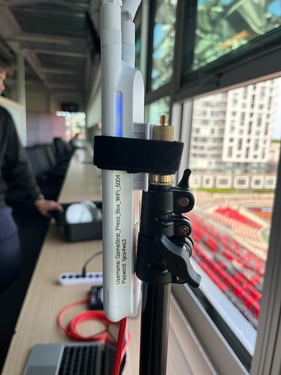
GameStrat Press Box WiFi Antenna

  • Solid blue — antenna is active and broadcasting
  • No light — Check that the red Ethernet cable is properly connected to the GameStrat Router, and that the GameStrat Router is connected to power

GameStrat Bridge
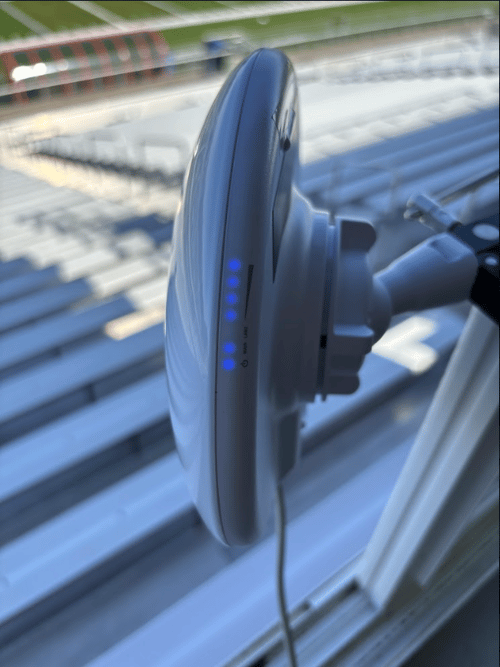
  • 6 lights — connected and ready
  • 2 lights — not connected to the GameStrat Station. Check alignment between the two antennas and reseat the grey cable at the GameStrat Router

GameStrat Station

  • 7 lights — connected to both the Bridge and the Streaming Device
  • 6 lights — connected to the Bridge but not the Streaming Device. Check the black Ethernet cable between the Station and the Streaming Device
  • 2 lights - not connected to the GameStrat Bridge

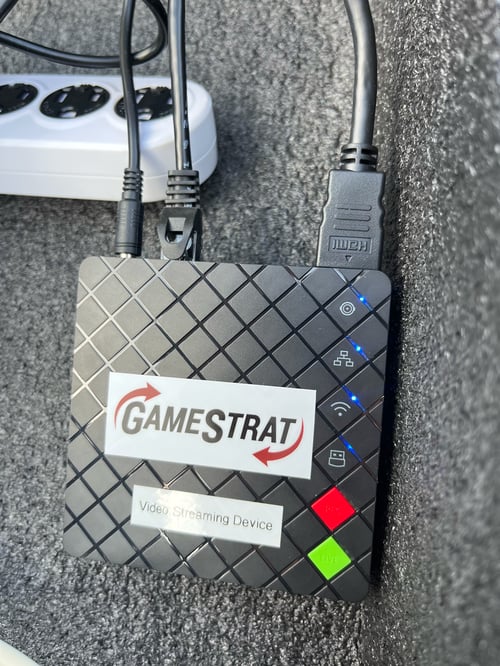
GameStrat Streaming Device — Ethernet icon (3 squares)

  • Solid — network connection confirmed
  • Flashing — not connected to the GameStrat network. Resecure the black Ethernet cable between the Station and the Streaming Device

GameStrat Streaming Device — HDMI icon (circle)

  • Solid blue — camera signal detected
  • No light — no camera signal. Work through the No Signal troubleshooting article

GameStrat Sideline WiFi Antenna

  • Solid blue — antenna is active and broadcasting
  • Blinking — not properly connected. Check the blue Ethernet cable between the antenna power box and the GameStrat Station Power Box
  • No light — Check that the red Ethernet cable is properly connected to the power box, and that there is a solid white light on the power box

College Package

GameStrat Press Box WiFi Antenna

  • Solid blue — antenna is active and broadcasting
  • No light — Check that the red Ethernet cable is properly connected to the GameStrat Router, and that the GameStrat Router is connected to power

GameStrat Bridge (End Zone and Sideline)

  • 6 lights — connected and ready
  • 2 lights — not connected to the GameStrat Station. Check alignment between the two antennas and reseat the grey or blue cable at the GameStrat Router

GameStrat Station (End Zone and Sideline)

  • 6 lights — connected to both the Bridge and the Streaming Device or Sideline WiFi Antenna
  • 2 lights - not connected to the GameStrat Bridge

GameStrat Streaming Device — Ethernet icon (3 squares)

  • Solid — network connection confirmed
  • Flashing — not connected to the GameStrat network. Resecure the black Ethernet cable between the Station and the Streaming Device

GameStrat Streaming Device — HDMI icon (circle)

  • Solid blue — camera signal detected
  • No light — no camera signal. Work through the No Signal troubleshooting article

GameStrat Sideline WiFi Antenna

  • Solid blue — antenna is active and broadcasting
  • Blinking — not properly connected. Check the blue Ethernet cable between the antenna power box and the GameStrat Station Power Box
  • No light — Check that the red Ethernet cable is properly connected to the power box, and that there is a solid white light on the power box

Pro Package

GameStrat Press Box WiFi Antenna

  • Solid blue — antenna is active and broadcasting
  • Blinking — not properly connected. Check the blue Ethernet cable between the antenna power box and the GameStrat Router.
  • No light — Check that the red Ethernet cable is properly connected to the power box, and that there is a solid white light on the power box.


If you have any questions regarding your hardware's light indicators, please call us at 1-800-783-1968 x1 so we can assist you directly.